Quick & safe online shopping with 3DS

3D SECURE

Quick & safe online shopping

When you shop online with your APS card, you may sometimes be asked to complete an additional security check before your payment goes through.

This helps protect you from fraud by confirming that the payment is really being made by you.

A new, simpler way to approve your online card payments

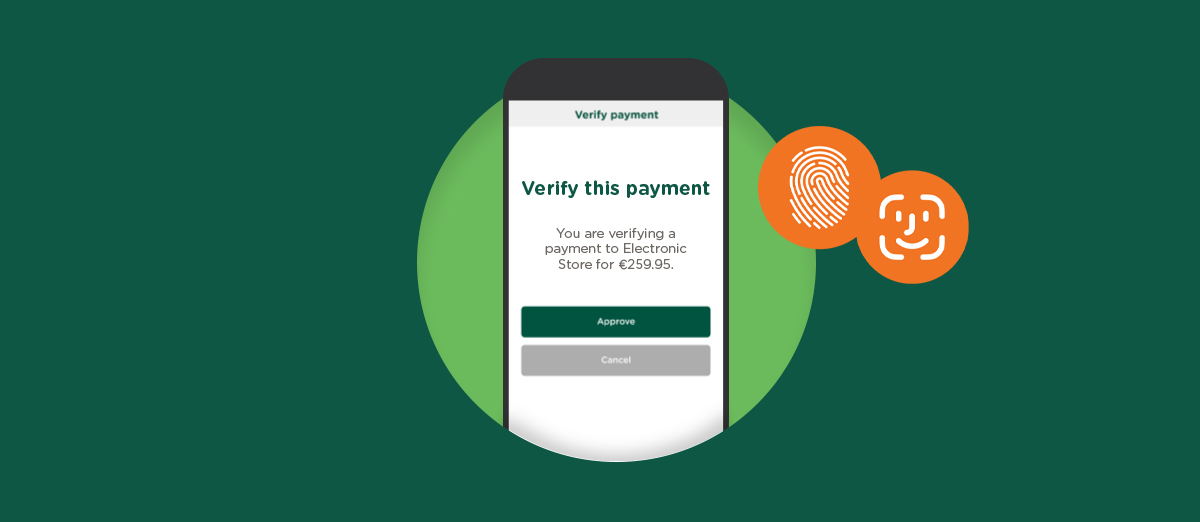
You can now approve online card payments directly through the myAPS app – making the process quicker and simpler.

If a security check is required, you will receive an approval notification on your mobile device. Open the app, review the payment details and tap Approve to confirm your payment.

⚠️ Important: to make sure you receive the approval notification, ensure that your push notifications are enabled for the myAPS app in both:

  • The myAPS app settings
  • Your phone settings

If you do not receive the notification, open the myAPS app to find the payment approval.

You can watch the step-by-step video below to see how it works.

If push notifications are not enabled

You will need to use your personal card password to approve online card payments instead. You can follow the guides below to see how to set up or reset your password.

If you have already set your password and need to reset it for any reason, follow the same process.

For your security:

  • Our Contact Centre cannot change this password for you
  • APS Bank will never ask you to share this password
  • This password should never be shared

If you do not use myAPS yet

You can sign up by following the instructions here or contacting our Contact Centre on (+356) 2122 6644 (Mon to Sun, 8am to 9pm).

We will never ask for your password over email or provide a website link to set or change this password. This can only be done by logging in to myAPS as per the usual process.

FREQUENTLY ASKED QUESTIONS

3D Secure

You will receive a push notification. Tap it and log in to myAPS, check that the merchant name and amount are correct, and tap Approve (or Cancel if you would not like to proceed).
Make sure that your push notifications are enabled for the myAPS app in both:
  • The myAPS app settings
  • Your phone settings
Log in to myAPS and see if you have any pending payments to authorise. If not, start the purchase again with the push notification turned on.
Go to your mobile settings and ensure notifications are enabled for myAPS. Then open the myAPS app and enable push notifications from the app settings.
You have 5 minutes to approve the payment. If it expires, return to the merchant and retry the payment.
We will ask you to approve the payment in the app as an extra layer of security, to confirm that it is really you making the purchase.
The main way to approve online card payments is now through the myAPS app through a push notification.
SMS codes are still available, but only as a fallback if you cannot approve the payment through the myAPS app and you have already set a password.
You need:
  • The myAPS app
  • To be registered and active on myAPS
  • Push notifications enabled on your phone and in the app
After 5 failed attempts, myAPS is temporarily locked. You can:
  • Switch to SMS (if password is set), or
  • Contact the Contact Centre to unlock access
If you cannot approve the payment in myAPS, you can use your card password and SMS code.
You can set your card password using myAPS internet and mobile banking. Click here for a simple guide on how to set your password using the app or here to view the guide to set your password via desktop.
The card password can only be set via myAPS internet and mobile banking. If you have not yet signed up for this service, click here for guidance.
The card password is to be used only when effecting online payments using your APS cards.  This will not impact other card payment methods.
Go on myAPS and set a new password in the same way you set it up the first time round. Need help? Click here for a simple guide on how to set your password using the app or here to view the guide to set your password via desktop.
You must first input your card password, followed by the secure code (received via SMS) in the next authentication screen.
Your card password must meet a number of requirements to be confirmed. The password must:
  • Be 8-15 characters long
  • Include a mix of upper and lower case letters
  • Include at least 1 number
  • Not include special characters or symbols
You need to set up your card password using myAPS internet and mobile banking. Click here to view the step-by-step guide on how to set your password via the myAPS app. Click here if you would like to set your password using myAPS desktop.
You just need to wait for 15 minutes and the card will be automatically unblocked. During this 15-minute timeframe, your card password cannot be changed.
The card password for your company card must be set up via your myAPS personal login. Click here for a simple guide on how to set your password using the app or here to view the guide to set your password via desktop.
If you’ve already set your card password but would like to change it for any reason, you can do so in the same way the password was set up. Need help? Click here for a simple guide on how to set your password using the app or here to view the guide to set your password via desktop. Our Contact Centre agents cannot change your card password, nor ask you for this password. This is personal and should never be shared with anyone.

Book an appointment

Approved and issued by APS Bank plc, APS Centre, Tower Street, B’Kara BKR 4012. APS Bank plc is regulated by the Malta Financial Services Authority as a Credit Institution under the Banking Act 1994 and to carry out the Investment Services activities under the Investment Services Act 1994. The Bank is also registered as a Tied Insurance Intermediary under the Insurance Distribution Act 2018. Terms and conditions apply and are available on apsbank.com.mt/terms-and-conditions.